
Invitation Guide: How It Works, Every Setting, and 12 Real Use Cases
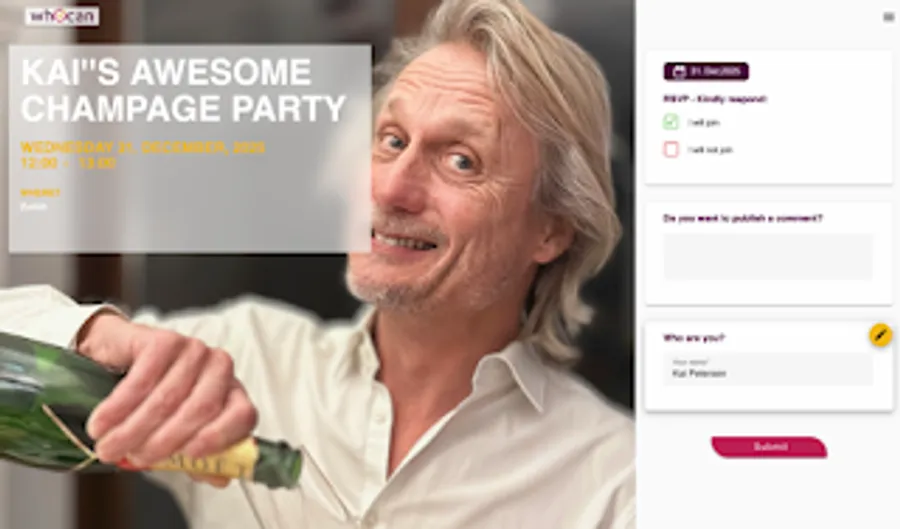
This is the next in a series of deep-dives into the nine poll templates Whocan offers. Each post covers one template end to end — what it does, every setting available, what guests see, and the real situations people use it for. The previous post covered the Scheduling Poll; this one is about the Invitation.
The Invitation is Whocan’s most-used template — 20,640 invitations were sent through it in the last 12 months. When I celebrated my 40th birthday at Piccolo Giardino in Zurich 16 years ago, Whocan didn’t exist yet — I built a small website specifically to collect the RSVPs, because that’s exactly what I was missing. That’s the gap this template fills today. If you’ve ever started a WhatsApp thread to RSVP a birthday and ended up scrolling 200 messages to count who’s coming, this is the template that replaces that thread.
What is a poll type?
A poll type on Whocan is a pre-configured combination of answer formats, default settings, and visual theme that fits one specific situation. All nine templates run on the same underlying engine — they just expose different parts of it. You pick the template that matches your problem, type a title, share the link. The engine handles the rest. For the wider overview, see the parent guide to all nine templates. If the three words template, sample poll and theme sound similar, the glossary post sorts them out.
What an Invitation does
An Invitation asks one question: “are you coming?”
You — the host — set up an event page: title, date, place, optional description, and a background image that fits the occasion. You share the link. Each guest sees the event details and answers yes / no / maybe, optionally for several people at once (adults, kids, vegetarians), optionally with a public comment, and gets a real RSVP page back — not a numbered reply on a chat thread.
It’s the digital answer to “Just message me if you’re coming” — except instead of trying to count messages, you see a clean guest list update in real time, and you can spot the “two adults plus one toddler” and “veggie option please” notes before they get lost in the scroll.
See it live
Below is a real, interactive Whocan invitation embedded in this page. Click yes / no / maybe to see how the RSVP feels. Nothing you do here changes anything in your own polls — it’s a public sample anyone can interact with.
Every feature, in order
This section is the whole spec — settings on by default, settings you can turn on with one click, and what guests actually see.
What guests do
A Whocan invitation has no “option list” — there is only one thing to RSVP to: the event itself. Each guest sees the event page (title, date, place, optional description, background image) and a single answer block. Per invitation they can:
- Click “yes” / “no” / “maybe” — the standard three-way RSVP.
- Register several people at once — adults + kids + vegetarians as separate counters. On by default for invitations — the Register people setting comes with separate adults / kids / vegetarian counters.
- Leave a public comment — visible to other guests (“looking forward to it!”, “can I bring my dog?”). Public comments are on by default on this template, unlike Scheduling.
- Subscribe to host updates — guests can opt in to be notified if the date or place changes.
- See who else is coming — the participant list is on by default. Switch off if you want a quieter guest list.
Guests don’t need an account. They get the invitation link, they click, they’re done. The host sees the guest list, head count, and comments update in real time.
Settings on by default
| Setting | What it does |
|---|---|
| Theme: Classic Birthday Party | A festive party look — colorful balloons, default for invitations and birthdays. Hosts can switch to any of the 19 invitation themes, or upload their own background image. |
| Show participants | Every guest sees who else has RSVP’d and with how many people. Switch off for a quieter RSVP. |
| Public comments | Each guest can leave a message visible to everyone — “can’t wait”, “bringing my partner”, “any food allergies I should know about?”. Off in most other templates; on here because invitations live on the buzz. |
| Show when | The event date is rendered prominently in the header — it’s not just metadata, it’s the answer to “when is it?”. |
| Location first-step | The setup wizard puts the venue field on the first step, not buried in advanced settings — for invitations the place matters as much as the date. |
| Multiple persons | One guest can RSVP for a whole household: adults + kids + vegetarians counted separately. |
| Stepper-Wizard | The creation flow is a step-by-step wizard, not a single long page — less intimidating for one-off hosts. |
Settings you can switch on (advanced)
| Setting | What it does |
|---|---|
| Long description | A longer body text under the title — useful for dress code, parking, gift policy, or anything that doesn’t fit a one-liner. |
| Respond till | A deadline after which RSVPs close — useful when you need to give the caterer a head count by a specific date. |
| Theme picker | The 19 invitation themes (party balloons, festive dinner, wedding bouquet, baby feet, fireworks, Halloween, Valentine, 4th of July, friendsgiving, easter eggs, kids, disc-jockey, vine glasses, business people, BBQ, BBQ-veggie, Thanksgiving dinner, turntable, no-theme) — plus full custom: upload your own background image, pick colors, separate desktop/mobile sizing. |
| Get notifications | The host gets an email on every new RSVP. |
| Allow participants notifications | Guests can subscribe to host updates (“we’ve moved the dinner to the back garden”). |
| Private comments | A separate comment field visible only to the host — for “we’re allergic to nuts” or “we’ll arrive at 9”. |
| Ask for email / phone number | Require contact information from guests — useful when you need to follow up. |
Managing the guest list
Once RSVPs start coming in, the guest list is more than a passive count — it’s where the host actually manages the event. Three host-only tools sit in the list.
Edit any RSVP in place. Click the pencil icon on any row and the whole row becomes editable — name, yes/no/maybe, adults/kids/veggies count, comment, contact details. Useful when a guest writes back saying “actually we’ll be three not two” or when someone enters the wrong name and you fix it instead of asking them to redo it.
Tag RSVPs with a flag. Every row has a free-text Tag column visible only to you (the column is hidden from guests). Use it to mark VIPs, confirmed-by-phone, dietary requirements, table assignments, gift received, payment status — whatever you need to track alongside the actual RSVP. Sort the table by the Tag column to group like with like.
Add a vote on someone’s behalf. Below the list there’s an Add vote button — it inserts a new row in edit mode and lets you fill in the answer yourself. The RSVP is flagged internally as “added on behalf” but counts toward the totals exactly like a self-submitted one. This is the workflow for “Aunt Erika replied via WhatsApp”, “my mum just told me at lunch”, or “the neighbours called and said yes for all four”.
These three together turn the guest list from a head count into a working surface — most hosts spend more time here than on the create page once invitations are out.
Answer format under the hood
The Invitation supports two answer formats: a single yes/no/maybe per invitee, and a labelled-answer-pair variant for cases where the invitation has a sub-question like “vegetarian or meat?”. Notably there is no date-per-option — the event date sits in the header, not in a list of candidate slots. That’s the difference from a Scheduling Poll: invitations are for one known event; scheduling polls are for choosing between candidate dates.
For anything more complex — multiple events bundled in one poll, mixed answer formats, sliders, dropdowns — switch to Advanced.
Themes
Visual theming on the Invitation uses Whocan’s invitation-theme family — 19 preset themes plus full custom image upload. The picker is exclusive to the invitation family (and its specializations: birthday invitation, baby shower invitation, RSVP).
The default: Classic Birthday Party Invitation. A festive, party-balloon look in red-black-yellow tones. Pre-configured for invitations and birthdays — pick this if you want the page to feel celebratory without picking anything yourself.
The minimal choice: No Picture. No background image, no decoration. Useful for formal invitations where styling would feel out of place — corporate events, condolence gatherings, professional roundtables.
Bring your own: custom background. Upload your own image and the invitation header carries it instead of a preset. Roughly one in five invitations on Whocan uses a custom background (20.7% in the last 12 months — over 4,000 invitations). It’s the largest custom-theme share of any template, and it’s why so many Whocan invitations look like personal moments rather than tool screenshots.
Every preset invitation theme, grouped by occasion:
- Default / birthday: Classic Birthday Party Invitation (default), Birthday Dinner Invitation, Kids Birthday Invitation
- Wedding: Wedding Bouqet
- Baby shower: Baby Feet (Small)
- Food & dining: Barbecue, Vegetarian Barbecue, Thanks Giving Dinner, Wine - Glasses
- Music & nightlife: Party - DJ, Party - Turntable
- Holidays & seasons: Halloween - Table with Pumpkin, Easter Eggs, Valentine’s Hearts, 4th of July, Friendsgiving, Fireworks
- Work & formal: Business People, No Picture
The Invitation has its own theme picker — generic themes (Calendar, Buffet, Checkbox and so on) are not in it. If you want anything outside the 19 invitation themes, switch the poll into Advanced mode and the full 36-theme library unlocks without losing the RSVPs you already collected.
Twelve real-world use cases
These are not invented examples. They are clusters distilled from the 20,640 real invitations that ran on Whocan in the last 12 months — anonymized by intent. For each one I’ve noted the setting you’d typically tweak from the default.
1. Birthday party (adults)
By far the largest cluster — 5,256 birthday invitations sent through the dedicated Birthday Invitation template plus another 5,680 polls with “birthday” or a localized equivalent in the title across all invitation polls. From small dinners for 8 friends to surprise parties for 40. The host wants a head count, a sense of who’s coming, and a way to share the venue and time without a group-chat scroll.
Typical tweak: keep the default Classic Birthday Party Invitation theme or upload a custom photo of the birthday person. Turn on respond till if you need to give the restaurant a head count by a specific date.
There’s also a dedicated birthday-invitation page and the whocan birthday-invitation template — same engine, pre-tuned with birthday-relevant defaults.
2. Kids’ birthday party
807 of the birthday invitations were specifically for kids’ parties (school class, playground friends, family with cousins). The defining feature: most RSVPs are “two adults + one child” or “one parent + two kids” — the multi-person counters earn their keep.
Typical tweak: keep multiple persons and kids on (default for invitations), pick the Kids Birthday Invitation theme or upload a photo of the birthday kid. Add a long description with venue, drop-off and pick-up times — parents want to know logistics, not vibes.
3. Wedding RSVP
1,790 wedding invitations went through the engine in the last 12 months, with a clear spring peak — 260 in March, 281 in April. The host is usually planning 6–18 months ahead and needs a clean RSVP page that looks like a wedding, not a software tool.
Typical tweak: pick the Wedding Bouqet theme or upload your own photo. Turn on respond till (caterer deadline), long description (dress code, hotel block, gift registry link), ask for email (for thank-you cards later). Keep vegetarians on so the caterer gets the right count.
4. Baby shower
605 baby shower invitations in the last 12 months, with a March–April spike (109, 131). Often hosted by a friend on the mother’s behalf, often with a “register a gift” sub-step the host handles separately.
Typical tweak: pick the Baby Feet (Small) theme. Turn on public comments so guests can suggest gift ideas or coordinate (“I’m bringing the cake, anyone else doing dessert?”). The dedicated baby-shower page walks through the full pattern.
5. Communion / Confirmation
503 invitations in the last 12 months for first communion and confirmation celebrations — concentrated in March–May (73, 124, 80). Strongest in DACH and LATAM markets, mid-sized family gatherings of 20–40 people across multiple households.
Typical tweak: turn on multiple persons so a whole household RSVPs in one click. Long description for the church time vs. the reception time (two events, one invitation). Pick a Birthday Dinner Invitation or custom theme.
6. Generic party
3,361 invitations had “party” (or a localized equivalent) in the title without further specifics — house parties, end-of-project celebrations, season-finales, “come over Saturday”. These are the smallest format: median 3–8 guests, less than a week’s notice, casual tone.
Typical tweak: the default Classic Birthday Party Invitation theme works, or pick Barbecue / Party - DJ / Party - Turntable based on the vibe. Skip the long description — for casual parties, less is more.
7. Christmas / holiday gatherings
480 Christmas-themed invitations in the last 12 months, with a November–December peak (231, 117). Includes office Christmas parties, family-only Christmas dinners, neighbourhood drinks. Distinct from potluck (which is “who brings what”) — these are pure RSVP for an event you’re hosting.
Typical tweak: pick Thanks Giving Dinner / Birthday Dinner Invitation / Friendsgiving. Long description for “we’re doing dinner at 8, drinks from 7”. Respond till so you can buy the right amount of food.
8. Anniversary / milestone celebration
A subset of the wider birthday cluster — round-number birthdays (40th, 50th, 70th), wedding anniversaries, retirement parties. Smaller (15–30 guests) but more formal, often with a separate dinner and after-party.
Typical tweak: custom background image (a photo from earlier years works well), Birthday Dinner Invitation theme, long description with the agenda, respond till, and vegetarians on for the caterer.
9. New Year’s Eve / 4th of July / national-day
81 New Year’s Eve invitations + the seasonal cluster (Halloween 73 Easter polls, plus 4th of July around US celebrations). Strong “save the date” feel — the date is fixed by the calendar, the host just needs head counts and a vibe.
Typical tweak: pick the matching theme (Fireworks, 4th of July, Halloween - Table with Pumpkin, Easter Eggs, Valentine’s Hearts). Default everything else.
10. Graduation / school milestone
395 graduation invitations in the last 12 months, mostly in spring (May–June). Strongest in LATAM markets, often combining a ceremony invitation with the family lunch afterwards.
Typical tweak: turn on multiple persons (relatives travel as a unit), long description for the ceremony time vs. the reception time, and pick a Birthday Dinner Invitation theme or a custom photo of the graduate.
11. Housewarming / move-in invitation
A smaller cluster but the pattern is distinctive: new address, new place, an open invitation across an evening rather than a fixed dinner. Hosts want a rough head count, not a precise one.
Typical tweak: long description with the address and parking notes, optional respond till for the day-of, public comments on so neighbours can coordinate gifts or food.
12. Funeral wake / memorial gathering
A small but important cluster — families and friends use Whocan to handle the head count for a wake, memorial drinks, or post-service gathering. Tone is formal, the host wants accuracy without fanfare.
Typical tweak: pick No Picture or upload a personal photo. Skip the festive defaults — turn off public comments if you want a quieter RSVP, and use private comments for “I can come but only after 4pm”. This is one of the only invitations where the No Picture choice is the right one.
How an Invitation compares
Three close-cousin options come up in searches alongside the Invitation:
- Free online invitation with RSVP — Whocan’s pillar page for the Invitation template, walking through the full feature set with screenshots and themed examples.
- Birthday invitation with RSVP — same engine, pre-configured for birthdays, with birthday-relevant theme highlights and copy.
- Baby shower invitation with RSVP — same engine, pre-configured for baby showers, with the Baby Feet (Small) theme as default.
Beyond Whocan, the most common alternatives are Evite (free with ads, strong in the US, weaker on European events), Paperless Post (freemium, US-focused, paid for most theme libraries), and Punchbowl (paid). All three handle the basic “RSVP for an event” job; Whocan’s specific differences are the multi-person counters (adults + kids + vegetarians as separate fields, useful in any culture where guests come as households), the iframe-shareable sample previews, and that everything is free without a paywall on themes.
For situations that don’t fit at all — a meeting to schedule across multiple dates, a potluck where guests bring food, a task list — the parent guide to all nine templates maps each situation to the right template.
What it costs (nothing)
Every setting above is on the free tier. There is no paid plan, no per-invitation fee, no per-guest limit. Whocan runs on light advertising on landing pages (not inside the invitation itself) and on word of mouth. Over 57,000 polls ran on the engine in the last 12 months without anyone paying for them — the Invitation template alone accounts for more than a third of that.
Try it yourself
The fastest way to learn what an invitation can do is to make one:
No signup, no email required, no card. If you want to come back to your invitation later from a different device, you can save the access link the app gives you — that’s all.
Next in the series: Potluck — Whocan’s bring-a-dish template, the one that handles “who brings what” without anyone showing up with three desserts. Deploy 2026-06-05, follow the poll-types hub to catch the next post.