
Doodle Poll Guide: How It Works, Every Setting, and 8 Real Use Cases
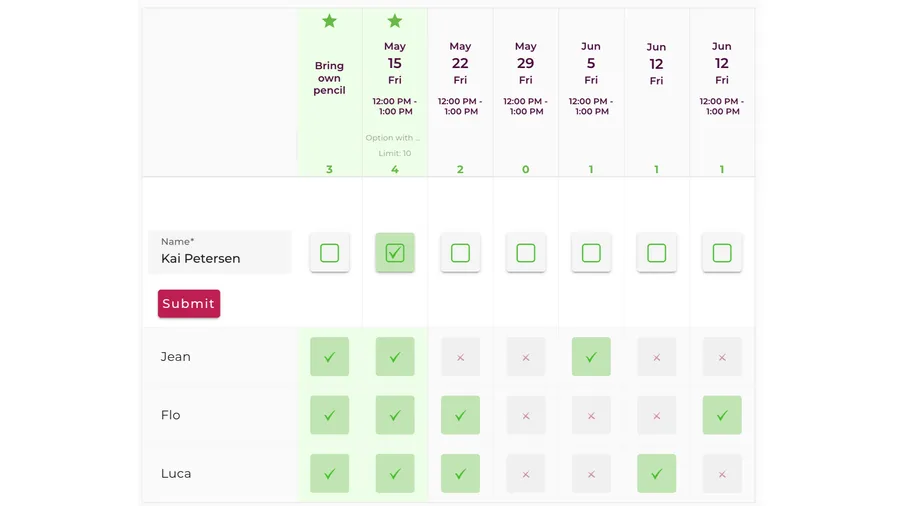
This is the next in a series of deep-dives into the nine poll templates Whocan offers. Each post covers one template end to end — what it does, every setting available, what voters see, and the real situations people use it for. The previous post covered the Potluck; this one is about the Doodle Poll.
The Doodle Poll is Whocan’s table-layout time-finder — 6,132 doodle polls ran on it in the last 12 months, with 2.9 answers per poll on average, almost exactly the conversion of its sister template, the Scheduling Poll (3.1). The two templates solve the same problem — “out of these candidate dates, which work for you?” — but present it differently: the Scheduling Poll as a list, the Doodle Poll as the matrix grid that Doodle-the-product made famous. If your group thinks in tables — rows of dates, columns of names, green check marks at the intersections — this is the template that feels like home.
What is a poll type?
A poll type on Whocan is a pre-configured combination of answer formats, default settings, and visual theme that fits one specific situation. All nine templates run on the same underlying engine — they just expose different parts of it. You pick the template that matches your problem, type a title, share the link. The engine handles the rest. For the wider overview, see the parent guide to all nine templates. If the three words template, sample poll and theme sound similar, the glossary post sorts them out.
What a Doodle Poll does
A Doodle Poll asks one question: “out of these candidate dates and times, which work for you?” — and answers it in a table.
You — the host — propose several time slots. You share a link. Each voter gets a row, each candidate slot is a column, and every voter marks the slots that work for them, with an optional “if necessary” as the middle ground. The whole group’s availability is visible at a glance: scan down a column and you see exactly who can make Thursday at 2pm.
It’s the digital answer to the email thread “How about Tuesday? — Doesn’t work, Wednesday? — Conflicting meeting, Thursday?…” — and it’s the format that millions of people already know from doodle.com. Whocan’s version runs the same matrix, free, without ads inside the poll and without anyone needing an account.
See it live
Below is a real, interactive Whocan doodle poll embedded in this page. Click a slot to see how the table fills in. Nothing you do here changes anything in your own polls — it’s a public sample anyone can interact with.
Every feature, in order
This section is the whole spec — settings on by default, settings you can turn on with one click, and what voters actually see.
What voters do
A doodle-poll voter sees the table: candidate date/time slots as columns, the voters so far as rows. For each slot they can:
- Mark “yes” — they can make this slot.
- Mark “if necessary” — they can make it work if needed. The host sees these as a separate, weaker signal. On by default, because time-finding is exactly the case where “maybe” matters.
- Leave it empty — they can’t make this slot.
- Answer a text question — if the host mixed a free-text row into the table (“where should we meet?”), they type their answer right in the grid.
- Leave a private message — visible only to the host (e.g. “only after 5pm”).
Voters don’t need an account. They get the poll link, they mark their row, they’re done. The host sees the table fill in real time.
Settings on by default
| Setting | What it does |
|---|---|
| Table layout | The defining feature: dates and voters in one matrix. The same poll can be flipped to the normal list layout at any time — see the layout template setting below. |
| Theme: No Picture | The Doodle Poll starts deliberately plain — no background image, no decoration, just the table. Hosts can switch to any generic theme or upload their own image. |
| Participants can see how others have responded | The matrix shows every row to every voter — that visibility is the whole point of the format. |
| Participants may answer ‘If necessary’ | Three-way yes / no / if-necessary answer per slot, so soft availability doesn’t get lost. |
| Participants may add a private message | Each voter can attach a note visible only to the host — useful for soft constraints like “only after 5pm”. |
| Max participants per slot | The host can cap each slot, useful for “the meeting room seats eight”. |
| Description per option | Each slot can carry its own note (“on-site at the office”, “video call only”). |
| Date and text rows in one poll | Beyond candidate dates, the host can add free-text questions to the same table — “which restaurant?”, “anything to add to the agenda?”. The Scheduling Poll doesn’t do this; here it’s built in. |
One deliberate difference from the Scheduling Poll: in a doodle poll, voters can’t add their own candidate slots — the host’s table stays the host’s table. If you want voters to propose dates, the Scheduling Poll is the right template.
Settings you can switch on (advanced)
| Setting | What it does |
|---|---|
| Description | A longer body text under the title — useful when the meeting needs context. |
| Set ‘Response deadline’ | A deadline after which voting closes. The poll stays visible but locks. |
| Set ‘Location’ | A venue field that gets written into the calendar export. |
| Change time zone | Full time-zone support. Voters in other zones see a hint about the offset from their local time. |
| Set layout template | Switch the voting form between Table (the matrix) and Normal (the list) — same poll, same answers, different presentation. |
| Get notified via email about new votes | The host gets an email on every new answer. |
| Allow participants to receive email updates | Voters can subscribe to updates (“we’ve picked Thursday at 2pm”). |
| Participants should provide an email address / phone number | Require contact information from voters. |
| Copy poll | Duplicate a poll you already ran — useful for recurring meeting cadences. |
| CSV export | Export the full result table once voting closes. |
| iCal / ICS export | Once the winning slot is picked, every voter can add the event to Google Calendar, Outlook, or Apple Calendar. |
Editing slots after you create them
Two host-side tools that quietly save time once your table has more than a handful of columns.
Repeat a slot as a series. On any date slot, pick Repeat from the slot menu — the dialog asks for a pattern (daily, weekdays only, weekly, every two weeks, or monthly) and an end date, and generates the rest of the series for you (up to 52 occurrences in one go). Useful for weekly standups, training blocks, rehearsal cycles, or any recurring meeting where you’d otherwise type the same time fifteen times.
Bulk-edit multiple slots at once. Select several slots with the row check boxes (or Select all) and open the multi-edit dialog. For each attribute — date, time, label, description, participant cap — there’s an opt-in check box: tick what you want to change, leave the rest untouched, save once. Shifting every slot by a week, capping all slots at 8 participants, or adding the same note to a batch all become one-save operations.
Managing the results table
Once votes start coming in, the table is more than a passive grid — it’s where the host actually manages the poll. Three host-only tools sit in it.
Edit any vote in place. Click the pencil icon on any row and the whole row becomes editable — name, every slot answer, comments, email and phone (if those fields are on). Useful when a voter writes back saying “actually I can’t make Tuesday after all” and you fix it instead of asking them to redo it.
Tag votes with a flag. Every row has a free-text Tag column visible only to you (it’s hidden from voters). Use it to mark must-attend people, confirmed-by-phone, externals — whatever you need to track alongside the actual answers. Sort the table by the Tag column to group like with like.
Add a vote on someone’s behalf. Below the table there’s an Add vote button — it inserts a new row in edit mode and lets you fill in the answer yourself. The vote is flagged internally as “added on behalf” but counts toward the totals exactly like a self-submitted vote. This is the workflow for “the team lead replied in the hallway” or “grandma told me on the phone”.
Answer format under the hood
The Doodle Poll exposes two answer formats in one table: date slots (yes / no / if-necessary per voter) and free-text rows (a typed answer per voter). That combination is the template’s quiet superpower — you can settle the date and one or two open questions in a single link instead of two. For anything beyond that — sliders, dropdowns, registration counts — switch the poll into Advanced and the full engine unlocks without losing the votes you already collected.
Themes
Visual theming on the Doodle Poll uses Whocan’s generic-theme system — but unlike most templates, it starts bare on purpose.
The default: No Picture. No background image, no decoration, just the table. A doodle poll is usually a work tool, and the default look respects that.
Bring your own: custom background. Upload your own image and the poll header carries it instead of a preset. About 4.1% of doodle polls in the last 12 months use a custom background (249 polls) — the lowest custom-design share of the big templates, which fits the tool-not-event-page character. You can also pick font family, color palette, shadow style, and separate desktop/mobile sizing.
The preset library. The picker exposes 31 preset themes, grouped here by topic so you can find one that fits:
- Neutral / minimal: No Picture (default)
- Work & community: Feedback, Volunteer, Register People
- Food & dining: Festive Dinner, Barbecue, Pizza, Sushi, Spaghetti, Order
- Sports & activity: Football, American Football, Yoga, Board Game, Concert, Movie
- Travel & lifestyle: Driver, Street, Relocation
- Family & kids: Kids Birthday Invitation, Baby Feet (Small)
- Celebrations & events: Wedding, Gift, Sparkler, Valentine’s Hearts
- Seasonal & holidays: Halloween, Christmas, Thanksgiving, Friendsgiving, Easter Eggs, 4th of July
A small curiosity: the Calendar theme is reserved for the Scheduling Poll, so it doesn’t appear in the doodle picker — along with the other template-specific looks (Hands Voting, Buffet, Checkbox, Hand and Pencil). If you want any of those — or any setting Whocan has — switch the poll into Advanced mode and the full library unlocks without losing the votes you already collected.
Eight real-world use cases
These are not invented examples. They are patterns from the 6,132 real doodle polls that ran on Whocan in the last 12 months — anonymized by intent. For each one I’ve noted the setting you’d typically tweak from the default.
1. Team meeting / standup sync
The work meeting is the bread-and-butter of the format. Across all templates, 2,143 polls in the last 12 months had “meeting” or a localized equivalent (“Réunion”, “Sitzung”, “Riunione”, “Reunião”) in the title — and the Doodle Poll is one of the two templates built exactly for that job. The host suggests 3–5 candidate slots, the team marks their rows, the freest column wins.
Typical tweak: turn on get notified via email about new votes so you see the moment your last voter has responded, and pick the winning slot the same day.
2. The recurring series (training, rehearsal, course block)
Weekly training sessions, rehearsal cycles, tutoring blocks — anywhere the same group meets repeatedly and attendance shifts week to week. This is where the repeat-a-slot tool earns its place: generate ten Thursdays in one go, and the table becomes a term planner.
Typical tweak: use Repeat when creating the slots, and copy poll at the end of the term instead of starting from scratch.
3. Board / committee meeting
Formal settings — 8 to 12 people, longer notice, sometimes a quorum to hit. The matrix is popular here precisely because attendance is visible: scan a column and you know whether the meeting is quorate.
Typical tweak: turn on set ‘Response deadline’ (a hard date), description (the agenda), and set ‘Location’ so the venue lands in the calendar export.
4. Distributed team across time zones
The table format plus time-zone support is the remote-work combination: candidate slots entered once, every voter sees the offset hint from their local time. Worth knowing for context: Whocan runs in six languages, and the engagement profiles differ — platform-wide, German-language polls collect the most answers per poll (4.0 on average) and French-language polls have the highest share that get answered at all (43.7%). Distributed groups are rarely monolingual; the poll itself doesn’t care.
Typical tweak: turn on change time zone and enter slots in your own zone — the conversion hint does the rest.
5. Date plus decision in one table
The doodle poll’s structural trick: mix free-text rows between the date columns. “Which evening — and which restaurant?” or “pick a slot, and what should we put on the agenda?” become one link instead of two polls. Voters answer the dates with check marks and the question with a typed answer, all in the same grid.
Typical tweak: none — just add a text row when you set up the options. If you find yourself adding more than one or two, the Online Poll or Advanced is probably the better shape.
6. Club / sports match coordination
Match-day availability, court bookings, league-night scheduling. Often recurring (same team, different weeks) and often capacity-bound (the court takes eight).
Typical tweak: turn on max participants per slot for capacity, and copy poll to clone last month’s poll instead of rebuilding it.
7. Family gathering across households
Picking a weekend for the grandparents’ visit, the cousins’ meetup, the birthday dinner with four households. Platform-wide, the typical active poll has a median of 3 voters with a long tail up to 20 — family scheduling lives at the small end, where the matrix is read in one glance.
Typical tweak: keep ‘If necessary’ doing the heavy lifting — family scheduling lives or dies on flexibility — and use the private message field for “we could come Friday but only after the kids’ practice”.
8. Coming from Doodle
The quiet cluster behind the template’s name: people who know exactly what a doodle poll is and want one without the parts of doodle.com they’ve stopped enjoying — the ads shown to participants on the free plan, the account requirement, the features behind the paid wall. The table works the same; the link is the only thing your group needs.
Typical tweak: none. If you’re weighing the two tools properly, the honest Doodle review and the free Doodle alternative page do the side-by-side.
How it compares
The obvious comparison is the product the template is named after.
Doodle (doodle.com) defined this format, and it remains a mature, capable product. The differences are structural, not cosmetic. On Doodle’s free plan, organizers need an account and participants see ads; deadlines and automatic notifications sit behind the paid plans. Whocan runs the same matrix — yes / no / if-necessary, rows and columns, deadline, calendar export — free, with no ads inside the poll and no account for anyone. To be equally honest the other way: Doodle’s paid plans cover ground Whocan doesn’t try to — connected calendars and 1:1 booking pages, for instance. If your organization depends on those, Doodle Pro is the right tool; if what you need is the poll, the full comparison on the Doodle-alternative page and the Doodle review go feature by feature, and the best free Doodle alternatives listicle widens the field beyond the two of us.
Inside Whocan, two close cousins:
- Scheduling Poll — the same time-finding job in a list layout, with one ability the doodle poll deliberately lacks: voters can propose their own candidate slots. List versus table is mostly a matter of group taste — and since the layout template setting flips one into the other, the choice isn’t final.
- Online Poll — when the question isn’t about dates at all (“which logo?”, “where should the team event go?”), the Online Poll is the right shape; its spoke in this series is next.
For situations that don’t fit at all — a single event with RSVPs, a bring-list, a task rota — the parent guide to all nine templates maps each situation to the right template.
What it costs (nothing)
Every setting above is on the free tier. There is no paid plan, no per-poll fee, no per-voter limit. Whocan runs on light advertising on landing pages (not inside the poll itself) and on word of mouth. Over 57,000 polls ran on the engine in the last 12 months without anyone paying for them — roughly one in nine of those was a doodle poll.
Try it yourself
The fastest way to learn what a doodle poll can do is to make one:
No signup, no email required, no card. If you want to come back to your poll later from a different device, you can save the access link the app gives you — that’s all.
Next in the series: Online Poll — Whocan’s highest-engagement template, the one for opinions, rankings, and every question that isn’t a date. Deploy 2026-06-19, follow the poll-types hub to catch the next post.